
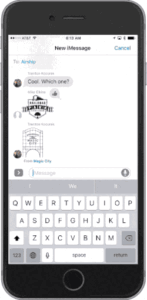
Installing Magic City Stickers

Airship Staff
December 8, 2016

1. Start a new iMessage conversation and tap on the iMessage App Store icon to the left of the text input field.
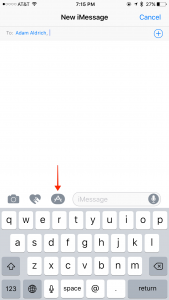
If you don’t see the 3 icons in the image, you may need to tap on the right chevron icon to expand these options.

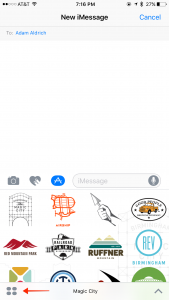
2. Once the iMessage app pane appears, tap on the iMessage App selection icon in the bottom left. It looks like a 2 x 2 grid.
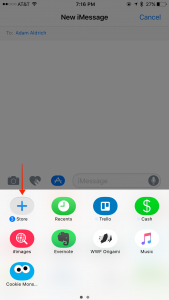
3. Tap on the Store icon on the next screen.
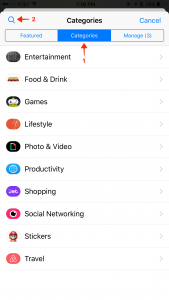
4. Once in the store, select the Categories item in the segmented control at the top. The tap the magnifying glass in the top left corner.
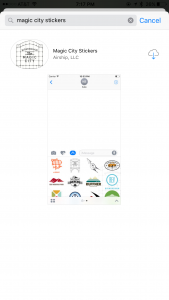
5. Enter “magic city stickers” in the search field and then tap the Search button on your keyboard. This should return the Magic City Sticker application and allow you to install it.
6. Now that the sticker pack is installed, you can repeat steps 1 and 2, but instead of tapping on the Store icon, you will select the new Magic City Stickers icon in the app selection pane.
Note: The app may have been placed on another pane within you app selection pane. Be sure to swipe left until you see it.

Tags

Need help building your custom app?

Unosquare’s nearshore teams specialize in custom application development.

CONTINUE READING

More from the blog

Nearshore product teams delivering exceptional outcomes through observation-first methodology. 3 case studies: 300% engagement, 60% faster delivery, 10% estimated cost.
A minimum viable product (MVP) is a no-frills version of your product with the core features needed to solve your users’ problem and provide immediate valu
Considering a full-stack developer? See if this role is right for your team. They handle front-end, back-end, and database layers, ideal for MVPs.

What if your next big breakthrough started here?

Fresh perspectives on modernization. Team-building strategies that work. AI applications you can actually implement. No buzzwords, just insights that move your business forward.

Help us customize your content with the following 2 questions:

Thank you!

We’re excited to have you with us! Keep an eye out for our next update – we can’t wait to share more.